7.2.11 DeNoiser
Takes steady hiss, room tone and background noise out of a recording, and leaves the voice or the instrument natural. Learn the noise, or let it follow the noise by itself.

DeNoiser removes steady background noise from a recording: tape and amp hiss, room tone, air conditioning, a computer fan. It turns down only the noise and leaves the voice or the instrument sounding natural.
Teach it the noise in a second: select a quiet part of the track on the timeline and press LEARN, with no need to play anything. Or let it follow the noise by itself as it changes. Two faders set how much counts as noise and how far it goes down, attacks and consonants stay sharp, and a live spectrum shows the noise, the threshold and the result. You can hear exactly what is being removed, and a preset can carry the noise you learned, so the same microphone in the same room is ready next time.
- Learn from the timelineSelect a part with only noise on the track and press LEARN. DeNoiser reads it straight from the recording, without playing.
- AdaptiveOr let it follow the noise by itself, for noise that changes during the take.
- Two fadersTHRESH sets how much counts as noise, REDUCTION how far it goes down.
- Keeps the attackDrum hits, plucks and consonants stay sharp instead of smearing.
- No warbleThe noise goes down smoothly, without the watery, metallic sound of cheap noise reduction.
- Extra on the hissA high shelf removes more noise in the highs, where hiss lives.
- See and hear itA live spectrum of the noise, the threshold, the input and the output, and DIFFERENCE to hear only what is removed.
- Presets with the noise18 factory presets, plus your own, which can include the learned noise.
7.2.11.1 Adding DeNoiser
- Open the mixer and click an empty insert slot on the track with the noise.
- Choose DeNoiser. Its window opens on Basics / Default.
- Press play. In ADAPTIVE, the default, DeNoiser starts following the noise straight away.
Put DeNoiser first on the track, before compressors and other effects, so it hears the noise as it was recorded.
7.2.11.2 Quick start
- On the timeline, select a part of the track where there is only noise: before the singer comes in, or between phrases.
- Press LEARN. DeNoiser reads the noise from the selection and switches to LEARNED.
- Play the track and raise REDUCTION until the noise is low enough.
- If some noise still gets through, raise THRESH a little. If the voice starts to sound thin or watery, lower it.
- Switch LISTEN to DIFFERENCE: you should hear only noise. If you hear the voice, lower REDUCTION or THRESH.
7.2.11.3 The title bar

- Power (left): switches DeNoiser on and off.
- Track and slot: where DeNoiser is, for example VOCAL · INS 2.
- ‹ ›: the previous or next preset.
- The preset name: click it to open the preset browser. It reads Custom when you have changed the settings.
- SAVE: save your settings as a preset (see Presets).
- •••: Save As, Rename, Delete, Move to Folder, New Folder, and your presets folder.
- A/B: compare two settings.
- ✕: close the window. DeNoiser keeps working.
7.2.11.4 Learned or Adaptive
DeNoiser needs to know what the noise sounds like. NOISE PROFILE in the bottom bar chooses how it finds out:
| Profile | How it knows the noise | Best for |
|---|---|---|
| LEARNED | From a part of the track with only noise in it, learned once and then kept. | Steady noise: hiss, a fan, room tone, air conditioning. Also a steady whine. The cleanest result, and the safest for long reverb tails and decays. |
| ADAPTIVE (default) | It follows the noise by itself while the song plays, and keeps up when the noise changes. | Noise that changes: a recording made in different places, a fan that speeds up, a quick clean-up with no quiet part to learn from. |
The line next to LEARN says what DeNoiser is doing: following in Adaptive, hearing 1.2 s while it learns, or learned 1.8 s when it has a profile. If you choose LEARNED with nothing learned yet, the spectrum says so and DeNoiser leaves the sound unchanged until you learn the noise.
In Adaptive, a very long, quiet tail (the end of a reverb or a piano note) can slowly be mistaken for noise. When that happens DeNoiser tells you: Tails may be cut — LEARN keeps them.
Learning the noise
There are two ways:
- From the timeline (the quick way): select a part of the track with only noise, then press LEARN. DeNoiser reads the noise straight from the recording, so you don’t have to play it. Gaps between clips are skipped.
- While playing: with nothing selected, press LEARN, play a part with only noise in it, then press LEARN again. Learning stops by itself after 30 seconds.
Either way, DeNoiser switches to LEARNED and keeps the profile with your project. Learn from a part with only noise: if the voice or the music is in it, DeNoiser will try to remove that too.
A profile learned from the timeline is read from the recording itself, so effects placed before DeNoiser on the same track are not part of it. That is another reason to put DeNoiser first.
Right-click LEARN, the profile line or the spectrum for: Learn from the Timeline Selection, Learn While Playing, Clear the Learned Profile, and how many seconds are learned.
7.2.11.5 The controls
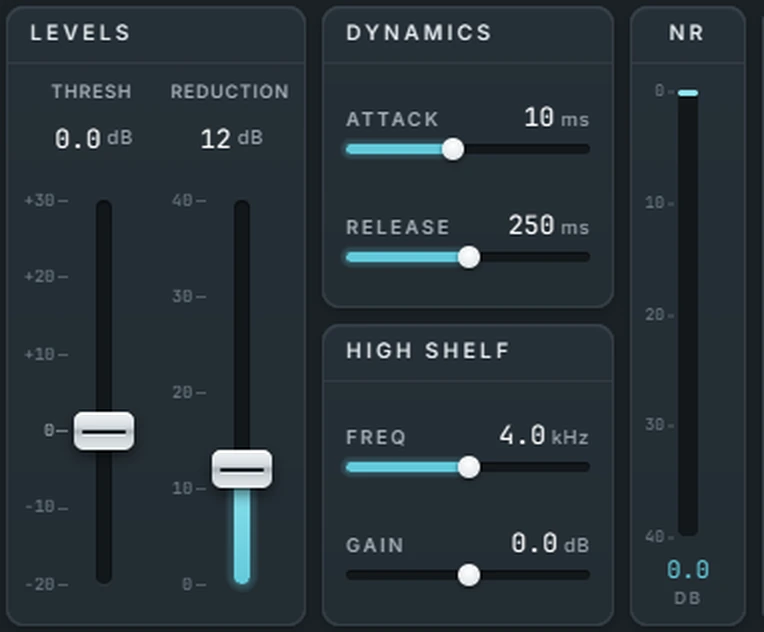
| Control | Range | What it does |
|---|---|---|
| THRESH | −20 to +30 dB | How far above the noise a sound must be to count as music. Higher removes more noise, but quiet parts of the music may go with it. 0 dB is a good start. |
| REDUCTION | 0 to 40 dB | How far the noise goes down. 10 to 15 dB sounds natural; more is cleaner but can sound empty. At 0 dB nothing changes. |
| ATTACK | 1 to 200 ms | How quickly a band opens when music starts. |
| RELEASE | 20 to 3000 ms | How quickly it settles back once the music stops. Longer keeps more of the room and the reverb tails. |
| HIGH SHELF FREQ | 1 to 16 kHz | Where the high shelf starts. |
| HIGH SHELF GAIN | −24 to +24 dB | Raises the threshold above FREQ, so more hiss is removed up there (above 0 dB), or less (below 0 dB). |
The NR meter shows how much noise DeNoiser is removing right now, in dB.
Attacks are protected by themselves: when a drum hit, a pluck or a consonant starts, DeNoiser lets it through at once, so it stays sharp.
7.2.11.6 The spectrum
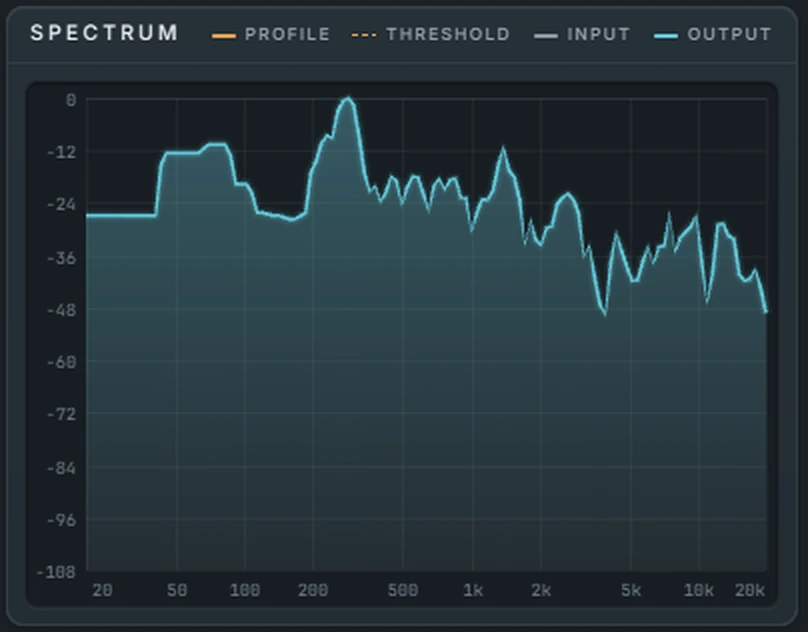
- PROFILE (orange): the noise DeNoiser is working from.
- THRESHOLD (dashed): the line a sound must rise above to count as music. It moves with THRESH and the high shelf.
- INPUT: the sound coming in.
- OUTPUT (blue): the sound going out. The gap between input and output is what DeNoiser removed.
7.2.11.7 Output and Mix
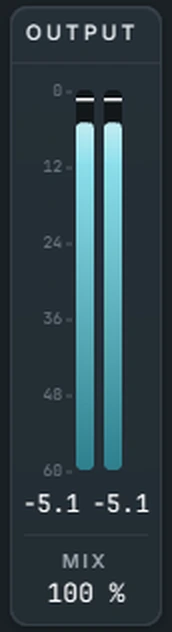
The two meters show the output level, left and right, with the peak in numbers. MIX blends the original (0 %) with the cleaned sound (100 %). A little below 100 % can keep a touch of the room for a more natural sound. Click the value to type a new one, or use the mouse wheel.
7.2.11.8 The bottom bar

Resolution
How finely DeNoiser looks at the sound. Higher resolution separates noise from music more precisely in the low end, but adds more delay. The latency is shown next to it, and the studio makes up for it on playback.
| Resolution | Latency | Use it for |
|---|---|---|
| LOW | About 20 ms | Drums and fast material, and the lowest delay. |
| MED (default) | About 45 ms | Most recordings. |
| HIGH | About 90 ms | Low, dense noise, such as rumble or a fan, and the finest detail. |
Resolution is set by hand and cannot be automated. A learned profile is kept when you change it.
Listen
- AUDIO: the cleaned sound.
- DIFFERENCE: only what DeNoiser is removing. Use it to check that you are removing noise and not music.
7.2.11.9 Presets
Click the preset name to open the browser. It has a FACTORY tab and a USER tab for your own presets, folders, and a search box. The factory presets are read-only; save a copy to change one.
| Folder | Presets |
|---|---|
| Basics | Default, Gentle, Heavy, Adaptive — Changing Noise |
| Vocal | Gentle Vocal, Breathy Vocal — Keep Air, Vocal — Heavy Hiss, Vocal — Room Tone |
| Dialogue | Podcast — Clean, Dialogue — Air-Con, Field Recording |
| Instruments | Acoustic Guitar, Guitar Amp Hiss, Drums — Keep Punch, Piano — Keep Decays |
| Restoration | Tape Hiss, Cassette, Old Recording |
SAVE saves your settings: over your own preset if you loaded one and changed nothing else, otherwise under a new name and folder. Tick Include the learned noise profile to keep the noise with the preset, so the same microphone in the same room is ready next time. Factory presets never carry a profile.
7.2.11.10 Controls and gestures
| Do this | To |
|---|---|
| Drag a fader or a slider | Change it. |
| Click a fader’s or slider’s track | Jump it there. |
| Mouse wheel over a fader, a slider or MIX | Change it in small steps. Hold Shift for big steps. |
| Double-click a fader or a slider | Reset it. |
| Click a value | Type a new one. |
| Right-click a control | Reset, type a value, and create, edit or clear its automation. |
THRESH, REDUCTION, ATTACK, RELEASE, the high shelf, the profile mode, LISTEN and MIX can be automated. RESOLUTION and LEARN are set by hand.
7.2.11.11 Good to know
- For steady noise. DeNoiser removes noise that stays roughly the same: hiss, room tone, fans, air conditioning. Clicks, crackle, a passing car or a barking dog are a different kind of problem.
- Less is more. A little noise left under the voice sounds more natural than none at all. Start with REDUCTION around 12 dB.
- Mono or stereo. Both sides are treated together, so the stereo image stays exactly where it was.
- The profile travels. The learned noise is saved with the project, and survives a change of sample rate or resolution.
7.2.11.12 Recipes
Vocal with room noise
Select the silence before the first line, press LEARN, REDUCTION 12 dB, THRESH 0 dB. Or load Vocal — Room Tone.
Guitar amp hiss
Learn from the amp’s hiss between phrases, then HIGH SHELF GAIN +6 dB from 4 kHz to take more of the hiss. Or load Guitar Amp Hiss.
Podcast or interview
Load Podcast — Clean, learn from a pause, and check with DIFFERENCE that no words are in what is removed.
Old tape or cassette
Load Tape Hiss or Cassette, learn from the hiss before the music starts, and use RESOLUTION HIGH.
Noise that changes
Stay in ADAPTIVE, or load Adaptive — Changing Noise, and keep REDUCTION moderate.
7.2.11.13 Troubleshooting
Nothing changes. In LEARNED with no profile, DeNoiser waits for you to learn the noise: press LEARN, or switch to ADAPTIVE. Also check that REDUCTION is above 0 dB, MIX above 0 % and the power is on.
The voice sounds watery or thin. Lower REDUCTION or THRESH, or raise MIX a little below 100 %. Check that the profile was learned from noise only.
Nothing was learned from the selection. The selection must be on this track, over a clip with sound in it.
Reverb tails disappear. In ADAPTIVE, long quiet tails can fade. Learn the noise and use LEARNED, or raise RELEASE.
Didn’t find what you need? Contact us.