7.2.9 Voice Front
A complete lead-vocal chain in one plugin, from noise and breaths to compression and loudness, on a five-control Simple face or a full Advanced one.

Voice Front puts a whole lead-vocal chain into one plugin. It cleans the take, evens the level, lowers breaths and harsh esses, removes ringing resonances, shapes the tone, compresses, adds colour and sets the final loudness, in the order an engineer would use.
It has two faces. The Simple face gives you five controls and a Learn button that listens to your singer and sets them for you. The Advanced face opens every stage of the chain, each with its own controls and a live picture of what it is doing. Both faces work on the same sound, so you can start simple and go deeper whenever you want. Voice Front always tells you what it did: every stage shows how much it changed, and auto-gain keeps the processed vocal at the same loudness as the original, so what you compare is the sound, not the volume.
- Two facesFive controls for a quick, great-sounding vocal, or the full chain of nine stages when you want to fine-tune.
- LearnPlay a few seconds of the song and Voice Front sets Clean, Ride, Bright and Body for this singer, and shows you every value it chose.
- Nine stages in oneClean, Ride, Breath, Sibilance, Resonance, Tone, Dynamics, Character and Output, already in the right order.
- Knows your songWith key awareness on, Resonance leaves the notes of your key and chords alone and removes only the rings that don’t belong.
- Gentle on the voiceBreaths are lowered, never cut out, and the de-esser touches only the “s” sounds, not your singer’s bright high notes.
- A rider before the compressorRide evens out loud and quiet lines like a hand on the fader, so the compressor can stay gentle. It never lifts the room in the pauses.
- Honest comparisonsAuto-gain matches the loudness of the original, A/B swaps two settings, and Delta lets you hear only what the chain removed or added.
- See every moveEach stage shows what it is doing now and a graph of the last eight seconds. The bottom strip shows the loudness in and out.
- SnapshotsEight snapshots that glide from one setting to another, for a softer verse and a bigger chorus.
- For mixing and for recordingMix mode uses every stage. Track mode has no latency, so a singer can monitor through it while recording.
7.2.9.1 Adding Voice Front
- Open the mixer and click an empty insert slot on your lead vocal track.
- Choose Voice Front. Its window opens on the Simple face.
- Press play.
A new Voice Front changes nothing: every stage starts switched off, and you hear your vocal exactly as recorded until you move a control or press LEARN.
7.2.9.2 Quick start
- Press LEARN and play a part of the song where the singer is singing.
- After a few seconds of singing, Learn sets CLEAN, RIDE, BRIGHT and BODY, and sets LEVEL to 50. The numbers under the knobs show what it chose.
- Adjust to taste: more BRIGHT for a more present vocal, more BODY for a fuller one.
- Press △ in the title bar to hear only what Voice Front is changing, then press it again to go back.
- If the song has a key in the bottom bar or chords in the chord track, click KEY so Voice Front can use them.
7.2.9.3 Two faces
Voice Front has a Simple face and an Advanced face. Click ADV in the title bar to switch between them. The window changes size to fit, and Voice Front remembers the face you used last on this insert.
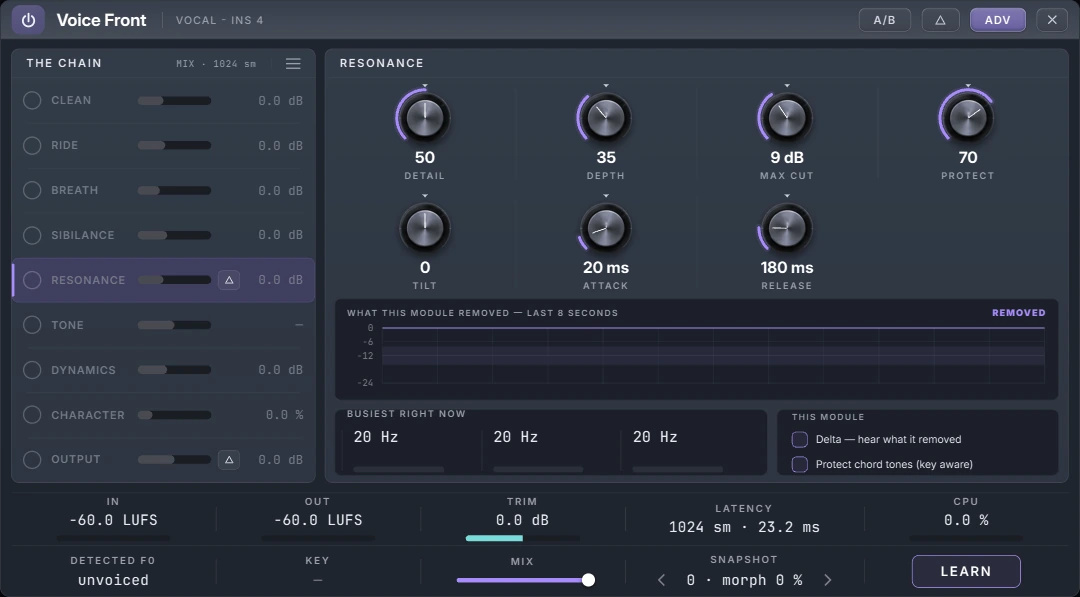
The two faces control the same sound. The five Simple controls move the stages of the chain for you. If you set something by hand on the Advanced face, the Simple controls leave that setting alone, so your own choices are never overwritten.
7.2.9.4 The title bar

- Power (left): switches Voice Front on and off with a short fade, so there is no click. Right-click it to automate the bypass.
- Track and slot: the track and the insert slot Voice Front is on, for example VOCAL · INS 4.
- A/B: compare two settings. Press it to keep the current setting, make changes, then press it again to swap between the two.
- △ (Delta): hear only the difference between your original vocal and the processed one: everything the chain removed or added. Press it again to hear the vocal.
- ADV: switch between the Simple and the Advanced face.
- ✕: close the window. Voice Front keeps working.
7.2.9.5 The Simple face
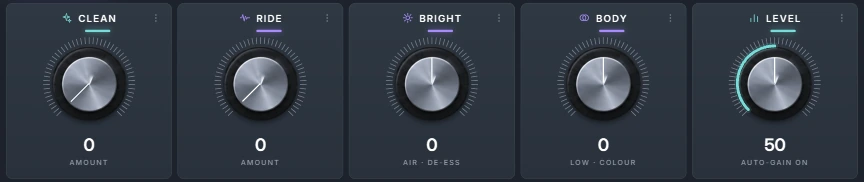
Each control looks after several stages of the chain at once, and switches them on when you turn it up.
| Control | Range | What it does |
|---|---|---|
| CLEAN | 0 to 100 | Takes the room noise and hiss out of the take and lowers the breaths. At 0 it does nothing. |
| RIDE | 0 to 100 | Evens out loud and quiet lines and adds gentle compression, so the vocal sits steadily in the mix. Higher values ride further and faster. |
| BRIGHT | −100 to +100 | Above 0, adds air and presence and holds back the esses at the same time, so the vocal gets brighter without getting harsh. Below 0, the vocal gets darker and smoother. |
| BODY | −100 to +100 | Above 0, adds weight in the low end and a little warm colour. Below 0, makes the vocal leaner, for a busy mix. |
| LEVEL | 0 to 100 | The output level, with auto-gain on. At 50 the processed vocal is as loud as the original; each side of 50 makes it up to 12 dB louder or quieter. |
Drag a knob up or down to change it, or double-click it to go back to its default. The ⋮ button on each card, or a right-click on the knob, opens its menu: type a value, reset it, or create, edit or clear its automation. All five can be automated.
Learn

- Press LEARN. It waits for the singer.
- Play the song. Learn starts when the voice comes in and listens to a few seconds of singing. Pauses are not counted.
- It then sets CLEAN from how much noise there is under the voice, RIDE from how much the level moves, BRIGHT from how much top end the voice has, and BODY from its low mids. LEVEL goes to 50.
You hear the result at once, and the knobs show every value Learn set. Change any of them afterwards as you like. Press LEARN again to cancel. Once it has started, Learn listens for up to about half a minute; if it heard almost no singing in that time, it changes nothing.
The line next to LEARN shows the loudness of your take as it plays, so you can see when the voice comes in.
KEY
The KEY chip switches key awareness on and off. When it is on, the chip shows the song’s key from the bottom bar, and Voice Front leaves the notes of your key, and of the chord playing now, alone when it removes resonances. When key awareness is off, or the song has no key, the chip shows “—”. See Key and chords.
The bottom strip

- IN and OUT: the loudness of your vocal before and after Voice Front, in LUFS, over the last few seconds.
- TRIM: how much auto-gain is turning the vocal up or down to match the loudness of the original.
- LATENCY: the delay Voice Front adds, in samples and milliseconds. The studio makes up for it automatically on playback.
- CPU: how much of the processing time Voice Front is using.
7.2.9.6 The Advanced face
The Advanced face shows the whole chain. Click a stage in the list on the left to open its controls on the right.
The chain
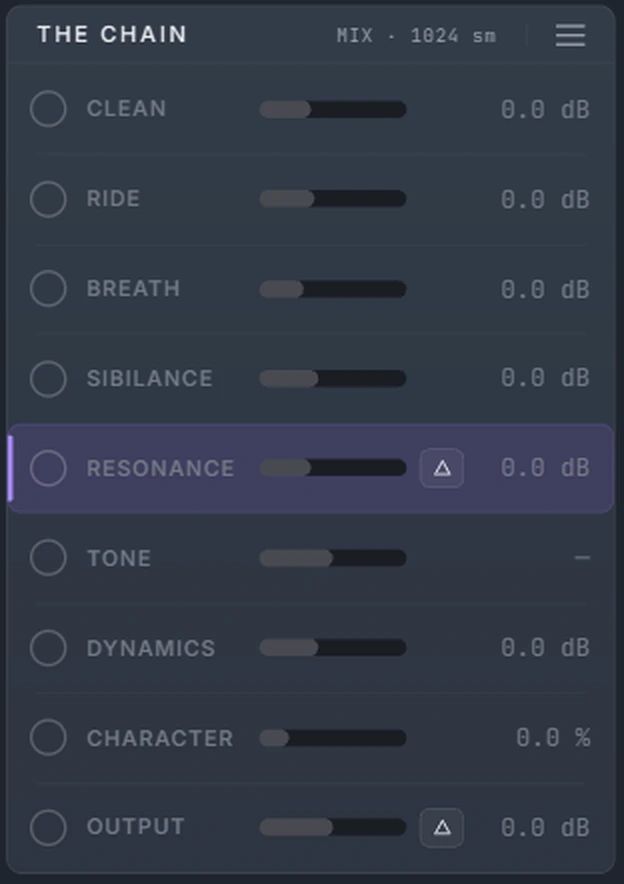
Each row of the chain has:
- The dot: switches the stage on and off. A stage that is off doesn’t touch the sound.
- The name: click it to open the stage’s controls.
- The bar: the stage’s main control, so you can set it without opening the stage. Click or drag on the bar, use the mouse wheel for small steps, double-click to reset it, or right-click for its menu.
- The value: what the stage is doing right now, for example how many dB it is removing.
- △ on Resonance and Output: Delta for that stage (see below).
The header shows the latency mode and the latency, for example MIX · 1024 sm. The ≡ button opens the window menu.
A stage
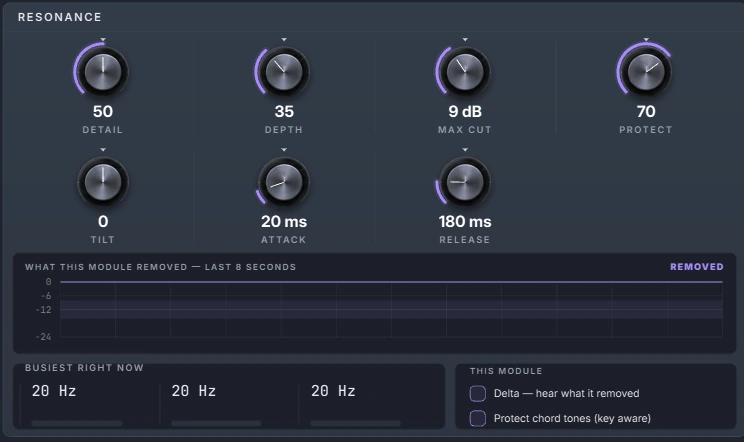
Every stage has the same layout:
- The knobs: drag up or down, hold Ctrl for fine steps, use the mouse wheel, double-click to reset, right-click to type a value or automate it.
- The graph: what the stage removed, applied or added over the last eight seconds.
- The readings: what the stage is measuring and doing right now.
- This module: the stage’s switches.
The bottom bar

The top row is the same as the Simple face’s strip. The second row has:
- DETECTED F0: the pitch the singer is singing now, or unvoiced between notes and on consonants.
- KEY: the song’s key, when key awareness is on.
- MIX: the balance between the original vocal (left) and the processed one (right). Leave it at 100 % for normal use, or lower it for parallel processing.
- SNAPSHOT: see Snapshots.
- LEARN: the same Learn as on the Simple face.
7.2.9.7 The nine stages
The vocal passes through the stages in this order. Each one starts switched off.
Clean
Takes steady noise out of the take: room tone, hiss, a computer fan. It follows the noise by itself, so it needs no silent part to work, and it lowers the noise rather than removing it completely, so the voice stays natural.
| Control | Range | What it does |
|---|---|---|
| AMOUNT | 0 to 100 | How much noise to remove. |
| RESIDUAL | −40 to 0 dB | How far the noise may go down. −18 dB keeps a little of the room so the voice doesn’t sound cut out. |
| GATE | −90 to 0 dB | Below this level, the gaps between phrases are lowered to the RESIDUAL level as well. At −90 dB the gate is off. |
| GATE HYST | 0 to 12 dB | How far below the GATE level the sound must fall before the gate closes, so the end of a phrase doesn’t flutter. |
Readings: how much it is removing now, and how long ago it learned the noise. Switch: Learn the noise in this track. Switch it on while only the noise plays (before the singer comes in, for example), then switch it off to keep what it learned. Clean works in Mix mode only.
Ride
A hand on the fader: it brings quiet lines up and loud lines down towards a target level, before the compressor. It never lifts the pauses, so the room doesn’t come up between phrases, and the short gaps between words don’t count as pauses.
| Control | Range | What it does |
|---|---|---|
| TARGET | −40 to −6 LUFS | The level Ride aims for. |
| RANGE | 0 to 24 dB | The most it may turn the vocal up or down. |
| SPEED | 1 to 40 dB/s | How fast it moves. |
Readings: the gain it is applying now, and how much of the range it has used. Switch: Look-ahead lets Ride react just before a change instead of just after it. It adds a little latency, so it is set by hand and cannot be automated.
Breath
Finds the breaths between phrases and lowers them. The singer still breathes, you just hear it less: the breath fades down and back up, with no hard cut.
| Control | Range | What it does |
|---|---|---|
| AMOUNT | 0 to 30 dB | How much to lower each breath. 9 dB is a natural start. |
| SENSITIVITY | 0 to 100 | How readily a sound is treated as a breath. |
Readings: how much it is lowering now, and how many breaths per minute it is finding. Breath works in Mix mode only.
Sibilance
A de-esser that lowers only the top of the sound, and only on “s”, “sh” and “t” sounds. A bright sung note is left alone, because Voice Front can tell a sung note from a hiss.
| Control | Range | What it does |
|---|---|---|
| AMOUNT | 0 to 100 | How strongly to lower the esses. |
| MAX | 0 to 24 dB | The most it may lower them. |
| SPLIT | 3 to 12 kHz | Where the top of the sound starts, when the automatic split is off. |
Readings: how much it is lowering now, and the split it is using. Switches: Find the split automatically (on by default) follows where this singer’s esses actually are. De-ess after the compressor moves Sibilance after Dynamics, for a vocal that is compressed hard.
Resonance
Removes the rings and harsh peaks that a room or a microphone adds to a voice, only while they ring, and leaves the rest of the sound alone.
| Control | Range | What it does |
|---|---|---|
| DETAIL | 0 to 100 | The one to start with. Low values also treat broad problems, such as a boxy room. High values treat only narrow, sharp rings. |
| DEPTH | 0 to 100 | How strongly to lower what sticks out. |
| MAX CUT | 0 to 24 dB | The most any frequency may lose, so Resonance never flattens the voice. |
| PROTECT | 0 to 100 | With key awareness on, how gently it treats the notes of your key and chord. At 0 it treats every frequency the same. |
| TILT | −100 to +100 | Leans the work towards the low end (below 0) or the high end (above 0). |
| ATTACK | 1 to 200 ms | How quickly it reacts to a ring. |
| RELEASE | 10 to 1000 ms | How quickly it lets go. |
Readings: the graph of what it removed, and the three busiest frequencies it is working on now. Switches: Delta lets you hear only what Resonance is removing; Protect chord tones (key aware) is the same switch as the KEY chip. Resonance works in Mix mode only.
Tone
Shapes the colour of the vocal.
| Control | Range | What it does |
|---|---|---|
| TILT | −12 to +12 dB | Tilts the whole vocal darker (below 0) or brighter (above 0). |
| AIR | 0 to 12 dB | Adds air at the very top. |
| AIR FROM | 6 to 16 kHz | Where the air starts. |
| 120 Hz, 450 Hz, 2.4 kHz, 8 kHz | −18 to +18 dB | Four bands for the low end, the low mids, the presence and the top. A band switches itself on when you move it. |
Readings: the pitch the singer is singing, and how sure Voice Front is of it. Switch: Follow the chord (on by default) lets Voice Front read the chord playing now from the chord track, so that with key awareness on, the notes of the chord are protected as well as the notes of the key.
Dynamics
Two compressors, one after the other. The first, A, compresses gently and smoothly. The second, B, catches the peaks that get through. Together they hold the vocal steady without squashing it.
| Control | Range | What it does |
|---|---|---|
| AMOUNT | 0 to 100 | How hard both compressors work. The one to start with. |
| A REDUCTION, B REDUCTION | 0 to 100 | How much each compressor turns the vocal down. |
| A RATIO, B RATIO | 1.5:1 to 20:1 | How strongly each one compresses. |
| A SPEED, B SPEED | 0 to 100 | How quickly each one lets go. |
| EMPHASIS | 20 to 400 Hz | Stops the low end from pushing the compressors, so a deep voice or a plosive doesn’t make them pump. |
Readings: how much A and B are turning the vocal down now. Switches: A limits instead of compressing and B limits instead of compressing (B limits by default).
Character
Adds warmth and colour.
- VALVE, TAPE or CONSOLE: three kinds of colour.
- AMOUNT (0 to 100): how much colour.
- TONE (−100 to +100): a darker or brighter colour.
Reading: how much colour it is adding now, as a percentage.
Output
The last stage: the final level, and the honest comparison.
- OUTPUT (−24 to +24 dB): the output level.
- Auto-gain (on by default): keeps the processed vocal as loud as the original, so turning a stage up never just makes it louder. TRIM shows what auto-gain is doing.
- Delta: hear only the difference the whole chain makes. It is the same switch as △ in the title bar. Auto-gain pauses while you listen to a delta.
Readings: TRIM, and the loudness in and out.
7.2.9.8 Key and chords
Voice Front can use your song to tell the notes your singer is singing from the rings a room adds. With key awareness on (the KEY chip, or Protect chord tones in Resonance), it uses:
- The key set in the studio’s bottom bar.
- The chord playing now from the chord track, when Follow the chord in Tone is on. This works even when no key is set.
Resonance then treats those notes gently, by the amount of PROTECT, and removes only what doesn’t belong to the music. Key awareness is off until you switch it on.
7.2.9.9 Mix mode and Track mode
Voice Front has two latency modes. Choose one in the window menu.
| Mode | Latency | Use it for |
|---|---|---|
| Mix (default) | A short delay, shown in the strip, which the studio makes up for on playback. | Mixing recorded vocals. Every stage works. |
| Track | None | Recording, when the singer monitors through Voice Front. Clean, Breath and Resonance don’t work in this mode, and Sibilance uses a simpler form. |
Ride’s Look-ahead adds a little latency in both modes.
7.2.9.10 Snapshots
The SNAPSHOT arrows on the Advanced face step through eight snapshots of the whole chain.
- Moving to an empty snapshot keeps your current settings in it, so nothing you hear changes.
- Moving to a snapshot you have used glides the whole chain to it smoothly, with no click.
- While a snapshot is selected, your changes are saved into it as you go.
- The morph value can be automated, so a lane can glide from a verse setting to a chorus setting.
7.2.9.11 The window menu
Right-click an empty part of the window, or click ≡ on the Advanced face, for:
- Simple skin and Advanced skin: the same as ADV.
- Latency mode: switch between Mix and Track.
- Reset every module to its default.
7.2.9.12 Controls and gestures
| Do this | To |
|---|---|
| Drag a knob up or down | Change it. Hold Ctrl for fine steps. |
| Mouse wheel over a knob or a bar | Change it in small steps. |
| Double-click a knob or a bar | Reset it. |
| Click or drag on a chain bar | Set the stage’s main control. |
| Right-click a knob or a bar, or click ⋮ | Reset, type a value, and create, edit or clear its automation. |
| Click a stage’s dot | Switch the stage on or off. |
| Right-click the power button | Automate the bypass. |
Almost every control can be automated. The latency mode, Look-ahead, the face and Learn are set by hand.
7.2.9.13 Good to know
- Nothing changes until you ask. Every stage of a new Voice Front is off, and with all of them off you hear your vocal exactly as recorded.
- Your settings come first. The Simple controls never overwrite a setting you made by hand on the Advanced face.
- Compare at the same loudness. Keep auto-gain on while you decide, so louder never fools you into hearing better.
- Same every time. Voice Front sounds the same on every playback and export.
7.2.9.14 Recipes
Quick pop vocal
LEARN, then BRIGHT +30 and RIDE 50. Check with △ that the chain isn’t taking away more than you want.
Home recording in an untreated room
CLEAN 50 to 70. On the Advanced face, switch on Resonance and set DETAIL to 30 so it also treats the boxy sound of the room. Turn key awareness on.
Intimate, close vocal
BODY +30, BRIGHT +10, RIDE 30. On the Advanced face, lower Breath’s AMOUNT to about 6 dB so some breathing stays.
Vocal in a dense mix
BODY −20, BRIGHT +40, RIDE 70. Choose TAPE in Character for a solid, steady tone.
Tracking a singer
Choose Track mode in the window menu, then set RIDE and BRIGHT. The singer hears the vocal with no delay. Switch back to Mix mode when you mix.
7.2.9.15 Troubleshooting
Voice Front changes nothing. Every stage starts off. Turn up one of the five controls, press LEARN, or switch stages on with their dots on the Advanced face. Check that the power is on and MIX is above 0 %.
Learn doesn’t finish. Learn needs a few seconds of singing. Play a part of the song with vocals, not an intro.
Clean, Breath or Resonance does nothing. They work in Mix mode only. Check the latency mode in the window menu.
The KEY chip shows “—”. Set the song’s key in the bottom bar, and click KEY so the chip is lit.
The vocal sounds louder or quieter than before. Check that Auto-gain is on in Output and LEVEL is at 50.
Didn’t find what you need? Contact us.