7.2.10 Voice Factory
Turn one recorded vocal into up to eight harmonies and doubles that follow your song’s chords, heard from your take and your band, placed on a stage you can see.

Voice Factory turns one recorded lead vocal into a full backing stack: doubles, thirds, octaves and wide harmonies, up to eight voices, all made from the singer’s own take and all following your song’s chords.
Most harmonisers ask you to set a key and hope. Voice Factory listens to the song itself: as soon as you add it, it hears the whole vocal take and the chords your band is playing, from MIDI parts and audio tracks alike. You can also point it at the chord track, the song’s key or a MIDI part you wrote. Every voice has its own pitch, timing, place in the stereo field, character and distance, and the whole stack stands on a stage you can see and shape. The lead vocal is never changed: Voice Factory only adds voices. When the stack is right, one click prints each voice to its own audio track.
- Up to eight voicesDoubles, harmonies above and below, octaves, fifths and the chord’s root, each switched on with one click.
- Hears your songAUTO hears the take’s key and the band’s chords, from MIDI parts, the Arranger band and audio tracks. Or follow the chord track, the key, or a MIDI harmony part.
- See every noteThe Notes view shows what the singer sang and the note every voice sings, on the song’s chords, with the next chord ahead.
- Seven stylesUnison, Double, Thirds, Close 3, Wide and Low set up the whole stack in one click; Custom is yours.
- A stage you can shapeWidth, depth and a room for the voices only. Drag voices around the stage to set their place and distance.
- Real harmonyThirds stay thirds and sixths stay sixths, on the chord’s notes when the lead sings one and on the key’s notes in between. No clashing seconds.
- Natural, never roboticEach voice can be detuned, delayed, humanised and given its own character, and consonants and breaths stay natural.
- Lead untouchedYour lead vocal passes through exactly as recorded. Stack alone lets you hear only the harmonies.
- Print to tracksOne click renders every voice to its own audio track under the lead, ready to edit and mix.
- Snapshots and A/BEight snapshots that glide from one stack to another, plus a quick A/B compare.
- Built for real sessionsFull automation, the same result on every playback and export, and delay compensation handled for you.
7.2.10.1 Adding Voice Factory
- Open the mixer and click an empty insert slot on your lead vocal track.
- Choose Voice Factory. Its window opens.
- Voice Factory starts listening to the take and the band straight away. The SONG chip shows ANALYSING with a thin line that fills while it works.
- Press play. Five voices start singing (the WIDE style).
Voice Factory comes with the HPS Studio edition. It is made for recorded vocals: put it on a track with your recorded lead, not on a track you are recording through.
7.2.10.2 Quick start
- Leave SOURCE on AUTO: Voice Factory hears the key of the take and the chords of the band by itself. Check the SONG chip in the title bar to see what it found.
- Pick a STYLE: DOUBLE for a thick lead, THIRDS for a classic harmony, WIDE for a full stack.
- Set STACK under the stage to balance the voices against the lead, and WIDTH to spread them.
- Switch individual voices on or off with the dot on each card, and fine-tune their level and pan.
- When it sounds right, click PRINT VOICES to turn the voices into audio tracks, or keep them live.
7.2.10.3 How the harmonies follow the song
Each voice sings a note worked out from the lead’s current note and the song. SOURCE chooses where the song’s harmony comes from:
| Source | Where the notes come from |
|---|---|
| AUTO | What Voice Factory hears, with nothing to set up. It listens once to every clip on the vocal track for the take’s notes and key, and to the rest of the song for the band’s chords: the MIDI parts, the Arranger band and the audio clips on the other tracks. Drums and other vocals are left out. This is where every new Voice Factory starts. |
| CHORD TRACK | The chords written in the song’s chord track. Bars with no chord written are filled with the chords Voice Factory hears. |
| KEY | The notes of the song’s Master Key (major or minor), ignoring the chords. |
| MIDI | A MIDI part you wrote: voice 1 sings its first note, voice 2 the second, and so on. Choose the part by right-clicking the window (see The window menu); otherwise Voice Factory uses a track whose name says it is a harmony part, such as “Harmony”, “Choir” or “BV”. |
Voice Factory listens again by itself when you edit a clip, change the tempo or record a new take, so the harmonies always match what is in the song. With no chords known, the voices follow the key; with no key either, they sing parallel intervals: a harmony a third above stays a third above, whatever the music.
The SONG chip
The chip in the title bar shows where the key comes from, the key, and where the harmony comes from:
| Shows | Meaning |
|---|---|
| TAKE, BAR, HEARD, SUNG | Where the key comes from: the vocal take, the song’s Master Key, the band, or what the singer sings. |
| ANALYSING 3 / 7 | Voice Factory is listening to the clips, here 3 of 7. A thin line under the chip fills as it goes. |
| HEARD 91 % | Chords heard in the band, and how sure Voice Factory is of them. |
| CHORD TRACK | The voices follow the song’s chord track. |
| MIDI · HARMONY | The voices sing the notes of a MIDI part, named after it. |
| KEY ONLY | No chords: the voices follow the key. |
| TAP TO USE | Voice Factory has heard a likely key in the vocal. Click the chip to set it as the song’s Master Key. |
| NO KEY · PARALLEL | Nothing to follow yet: the voices sing parallel intervals. |
Heard chords
When the chords are heard from the band, HEARD FROM THE BAND appears above the Notes view and each chord shows how sure Voice Factory is. Chords it is unsure of are drawn dashed, and the voices follow the key there.
- Click a heard chord to open HEARD AS: the chord and up to two alternatives. Click ▶ to hear one, and click a row to use it for that part of the song.
- WRITE TO LANE writes the chords into the song’s chord track, so they stay fixed, and switches SOURCE to CHORD TRACK. One undo step takes it back.
Voice Factory hears the band in MIDI and in audio: the MIDI parts, the Arranger band and the audio clips on the other tracks. It leaves out the vocal’s own track, drum tracks and other vocal tracks.
7.2.10.4 The window

- Power (left): switches the whole effect on or off (bypass).
- The track name and insert slot, for example VOCAL - INS 2.
- SONG chip: see above.
- A/B: compare two versions of your stack (see A/B).
- Δ (Stack alone): mutes the lead so you hear only the voices. It lights up while on.
- ✕ closes the window.
Drag the title bar to move the window, and drag its edges to resize it.
7.2.10.5 The Notes
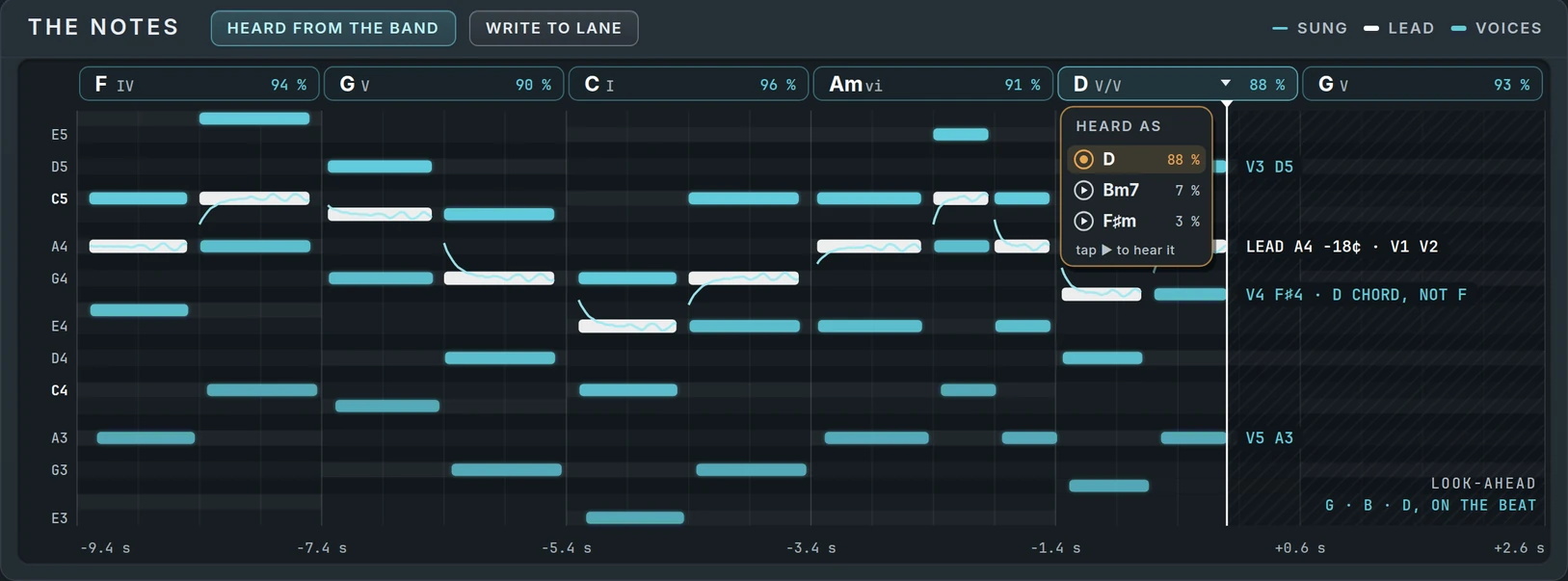
- Time runs left to right, with the playhead near the right. About nine seconds of the past are shown, and the area ahead of the playhead is shaded: only the chords are known there.
- SUNG (thin line): exactly what the singer sang, including slides and vibrato. LEAD (white bars): the notes Voice Factory hears. VOICES (teal bars): the notes the voices sing.
- The chords run along the top, each with its Roman numeral in the key.
- At the playhead, labels show which note each voice is singing, for example V3 G♯2.
- LOOK-AHEAD at the bottom right shows the next chord.
The Notes view draws while the song plays.
7.2.10.6 The Stage
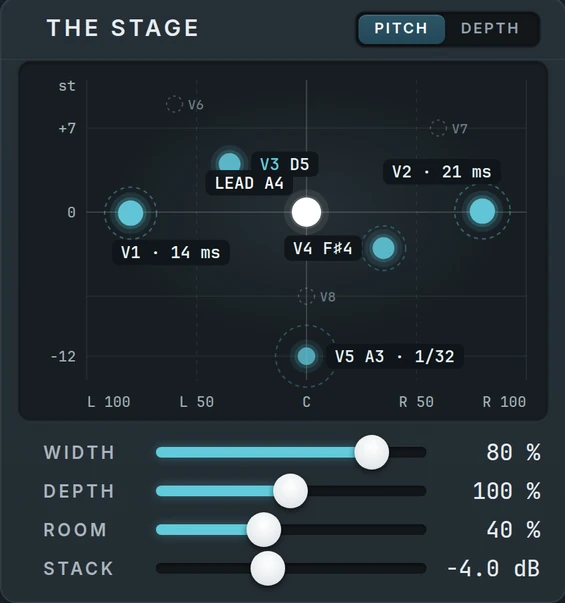
The Stage shows where every voice stands. Switch between two views at the top:
- PITCH: left to right is the voice’s place in the stereo field; up and down is how far its note is above or below the lead (in semitones). Bigger dots are louder voices; a dashed ring means the voice is delayed. The lead is the white dot in the middle.
- DEPTH: the stage seen from above, front to back. Drag a voice left or right to move it in the stereo field, and up or down to move it further back or closer. The glow around a voice shows how much room it gets.
- LAYER places every voice at a natural distance for its role in one click: doubles close, harmonies a little further back, low voices at the back.
- ROOM · CHAMBER chooses the kind of space, and SIZE its size.
| Control | Range | What it does |
|---|---|---|
| WIDTH | 0 to 100 % | How wide the stack is. At 0 every voice is in the centre. |
| DEPTH | 0 to 200 % | Scales every voice’s DISTANCE: more depth pushes the stack further back. |
| ROOM | 0 to 100 % | A small, natural room around the voices only, never the lead. Voices further back get more of it. It never rings on like a long reverb. |
| STACK | −24 to +24 dB | The level of all the voices together against the lead. |
7.2.10.7 The Voices
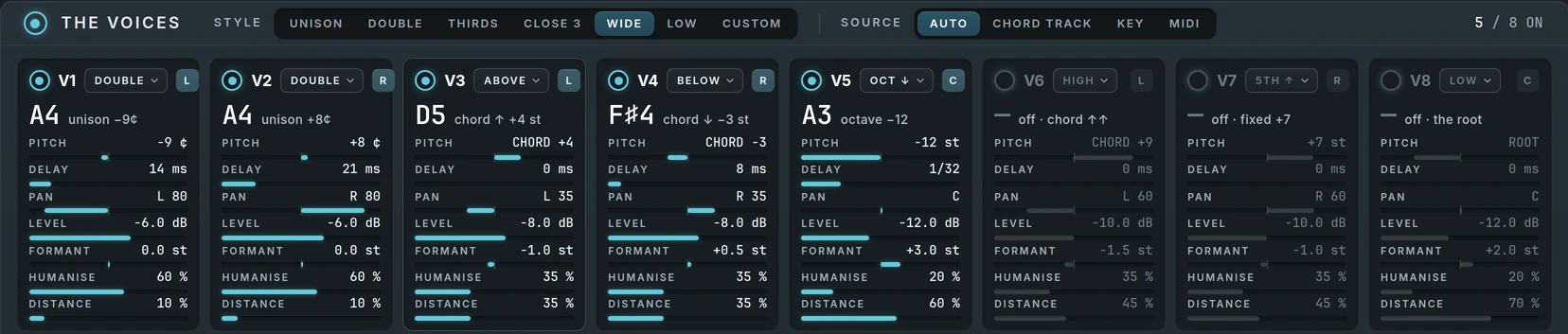
- The power dot by THE VOICES switches all the voices on or off, leaving the lead.
- STYLE sets up the whole stack in one click. Change any voice and the style becomes CUSTOM.
- SOURCE: AUTO, CHORD TRACK, KEY or MIDI (see above).
- On the right, how many voices are on, for example 5 / 8 ON.
| Style | The stack |
|---|---|
| UNISON | Two doubles, left and right: a thicker lead. |
| DOUBLE | Four doubles spread wide: a big, layered lead. |
| THIRDS | One harmony above and one below. |
| CLOSE 3 | A tight three-part harmony: one above, two below. |
| WIDE | Two doubles, a harmony above and below and an octave down; three more voices ready to switch on. |
| LOW | An octave down, the chord’s root and a harmony below: a deep stack. |
| CUSTOM | Your own stack. |
A voice card
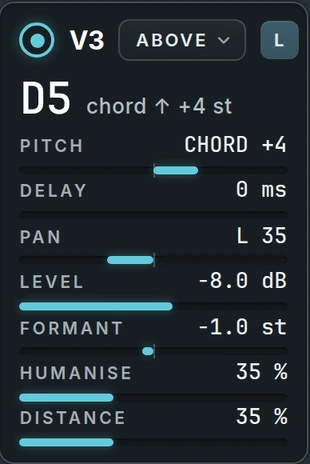
At the top: the voice’s on/off dot, its number, its role, and an L, R or C badge for its side. Below it, the note it is singing right now in large letters, and what it is set to sing, for example chord ↑ +4 st.
| Role | What the voice sings |
|---|---|
| DOUBLE | The lead’s own note, slightly detuned: a double. |
| ABOVE · BELOW | A third above or below the lead, on the chord’s notes. |
| HIGH | A sixth above the lead, on the chord’s notes. |
| OCT ↑ · OCT ↓ | An octave above or below. |
| 5TH ↑ | Always a perfect fifth above, whatever the chord. |
| LOW | The root of the chord (or the key), below the lead. |
| CUSTOM | Whatever you set in PITCH. |
Choosing a role sets the voice’s PITCH to suit it. The rows below fine-tune each voice:
| Row | Range | What it does |
|---|---|---|
| PITCH | −24 to +24 semitones | What the voice sings. CHORD +4: a harmony at an interval, named by its size: +3 or +4 a third, +5 a fourth, +7 a fifth, +8 or +9 a sixth, +12 an octave, above (+) or below (−). When the lead sings a note of the chord, the voice sings the chord’s note at that interval; on passing notes it uses the key’s notes, so a third stays a third and the line moves smoothly. +7 st: always exactly 7 semitones above. ROOT −7: the chord’s root below. −9 ¢: the lead’s note, detuned by cents. Type “chord 4”, “root”, “7” or “−9c” to switch between them. |
| DELAY | 0 to 100 ms, or 1/64 to 1/4 note | Makes the voice come in slightly late, for a looser, more natural double, or in time with the song as an echo. Type “1/16” for a note value. |
| PAN | L 100 to R 100 | The voice’s place in the stereo field (scaled by WIDTH). |
| LEVEL | −24 to +4 dB | How loud the voice is. |
| FORMANT | −12 to +12 semitones | The voice’s character without changing its note: up sounds smaller and brighter, down bigger and darker. Use it to make each voice sound like a different singer. |
| HUMANISE | 0 to 100 % | Small, natural drifts in tuning and timing, so the voices don’t sound copied. The same on every playback. |
| DISTANCE | 0 to 100 % | How far back the voice stands: quieter, softer, a little later and with more room, like a singer further from the microphone. |
Voices sing only while the lead is singing. On consonants and breaths, each voice uses the singer’s original sound, so “s” and “t” stay natural.
7.2.10.8 The bottom bar

- LEAD NOW: the note being sung, and how many cents sharp or flat.
- CHORD NOW and NEXT: the current chord (and where it comes from) and the next one, with how soon it arrives.
- STACK: how many voices are singing, and how many on the left, right and centre.
- LATENCY: the small delay Voice Factory needs to hear ahead (about 0.09 s). Harmonic Pro Studio makes up for it automatically, so everything stays in time.
- MIX: how much of the voices you hear (100 % is the full stack).
- SNAPSHOT ‹ › and PRINT VOICES: see below.
7.2.10.9 Snapshots
Voice Factory keeps eight snapshots of your whole stack. Step through them with SNAPSHOT ‹ ›:
- Stepping onto an empty snapshot saves the current stack into it.
- Stepping onto a saved snapshot glides smoothly from the current stack to it.
- While a snapshot is selected, your changes are saved into it as you go.
- “—” means no snapshot is selected.
Use snapshots for the parts of the song: a light double in the verse, a full stack in the chorus.
7.2.10.10 A/B
Press A/B to keep the current stack, then make changes. Press it again to swap between the two and compare. The swap is one undo step. The A/B memory is cleared when you close the window.
7.2.10.11 Print voices
PRINT VOICES turns every voice that is on into an audio track:
- Each voice is rendered on its own, from the start of the first clip to the end of the last.
- A new audio track is created for each voice, under the lead track, named for example Vocal V3 Above, with the same colour and output.
- The printed voices are switched off in Voice Factory, so nothing plays twice.
It is one undo step: undo removes the tracks and switches the voices back on. The files are saved in your project’s Audio/Bounces folder. Voice Factory needs the effect and its voices switched on, MIX above 0 %, and clips on the track.
7.2.10.12 The window menu
Right-click an empty part of the window for:
- Lead tuning: at 100 % the voices follow the singer’s tuning, so they stay in tune with the lead even when it is a little sharp or flat. Lower it to centre the voices on the true notes.
- Consonants: how much of the consonants and breaths each voice plays (35 % to start).
- Follow MIDI: choose the MIDI track the voices sing when SOURCE is MIDI.
- Reset the voices to WIDE.
7.2.10.13 Controls and gestures
| Do this | To |
|---|---|
| Click or drag on a bar or slider | Set its value. |
| Mouse wheel over a value | Change it in small steps. |
| Double-click a value or slider | Reset it. |
| Click a value’s number | Type a value. ↑ ↓ nudge it, Enter sets it, Esc cancels. |
| Right-click a value | Reset, type in, and create, edit or clear its automation. |
| Click a voice’s dot | Switch the voice on or off. |
| Click the role | Choose a new role from the list. |
Almost everything can be automated, including each voice’s settings, so harmonies can change through the song. Style and role are set by hand.
7.2.10.14 Good to know
- The lead is never changed. With every voice off, you hear your lead exactly as recorded.
- Recorded vocals. Voice Factory needs to hear a little ahead, so the voices sing on the recorded take. While the track is monitoring its input, the lead passes straight through with no delay and the voices are silent.
- One singer at a time. It works on a single lead line, from a deep bass voice up to a high soprano. A choir or a chord as input won’t track.
- Same every time. The voices sound the same on every playback, export and print.
- Long delays: a voice’s delay can be up to half a second in total, so very long note-value delays at slow tempos are shortened.
7.2.10.15 Recipes
Thick lead
STYLE UNISON or DOUBLE, STACK −6 to −2 dB, WIDTH 80–100 %. Raise HUMANISE for a looser feel.
Classic pop harmony
STYLE THIRDS, SOURCE AUTO, STACK −4 dB. Give the BELOW voice a little FORMANT +0.5 so it sounds like a second singer.
Big chorus
STYLE WIDE, switch on V6 (HIGH) and V8 (LOW), DEPTH 120 %, ROOM 50 %, then press LAYER for natural distances.
Echo harmony
One voice ABOVE with DELAY 1/8 and PAN to one side: the harmony answers the lead in time.
Written harmony part
Write the harmony notes on a MIDI track named “Harmony”, set SOURCE to MIDI, and the voices sing exactly your notes with the singer’s voice.
7.2.10.16 Troubleshooting
The voices don’t sing. Press play: the voices sing on the recorded take, not while monitoring the input. Check that THE VOICES power and some voices are on, and that MIX is above 0 %.
The harmonies sound wrong against the music. Check the SONG chip. While it shows ANALYSING, wait for it to finish. With NO KEY · PARALLEL, add chords to the chord track or set the song’s Master Key. With heard chords, check the dashed (unsure) ones and fix them with HEARD AS or WRITE TO LANE, or switch SOURCE to CHORD TRACK.
In MIDI mode nothing sings. Choose the MIDI track from the window menu, and press play.
The voices sound too obvious. Lower STACK, raise HUMANISE and DISTANCE, or try a little FORMANT on each voice.
Didn’t find what you need? Contact us.