2.4.1 The FILES tab
The FILES tab: your sound locations, search and tags, what each file shows, listening before you import, and dragging sounds into the song.

The FILES tab shows your sound locations: the folders where you keep samples, loops and MIDI files. It shows only the folders you add, not your whole computer.
The tab lists audio files (WAV, AIFF, FLAC, OGG and MP3) and MIDI files.
2.4.1.1 Sound locations
The first time you open the tab it has no location yet. Click ADD FOLDER… or +, and choose the folder where you keep your sounds.
At the top of the tab is the name of the location you are browsing, with + beside it. The search box under it is named after the location, for example Search EDM.
- Click + to add another folder as a sound location.
- Click the location’s name to change to another location. The same list has these items too:
| Item | What it does |
|---|---|
| Add folder… | Adds a folder as a sound location. |
| Rename “…”… | Gives the location a name of your own in this list. The folder keeps its name. |
| Remove location | Takes the location out of the list. The folder and its files stay on your computer. |
| Open in Explorer | Opens the folder in Windows Explorer. |
Your locations are kept for every song, not only this one.
2.4.1.2 Search
Type in the search box to list the files in the location whose names match. The list follows as you type. Clear the box to see the folders again.
2.4.1.3 Tags
Under the search box, the tags sort your sounds by kind: DRUMS, BASS, LOOPS, ONE-SHOTS, VOCALS, SYNTH, FX and MIDI. Click a tag to see only those sounds. Click ALL to see everything again.
Harmonic Pro Studio reads the tags from the names of your folders and files. A sound in a folder called Kicks or 808 is under DRUMS; one in Vox is under VOCALS.
2.4.1.4 The files
Next to each file you see how long it is and its sample rate. When the file’s name has a tempo or a key in it, for example Groove_120bpm_Am.wav, you see those too.
Above the folders, RECENT · ★ lists the last ten files you brought in from here, and the files you marked as favourites. It shows only when it has something in it.
2.4.1.5 Listen before you import
The strip at the bottom of the tab plays the selected file, so you hear it before you bring it into the song.
| Control | What it does |
|---|---|
| ▶ | Space. Plays or stops the selected file. |
| AUTO | With it on, a file plays as soon as you click it. |
| ⟲ | Plays the file round and round while you listen. |
| Level | How loud the file plays here, from −40 to +6 dB. It changes only what you hear now, not the file. |
The sound stops when you change to another tab.
2.4.1.6 Bring a sound into the song
Drag a file onto the timeline:
| You drag | You get |
|---|---|
| An audio file | An audio clip where you drop it. |
| A MIDI file | A MIDI clip where you drop it. |
| A sample, onto an instrument | The instrument plays that sample. |
Or double-click a file to bring it in on a new track.
2.4.1.7 The file menu
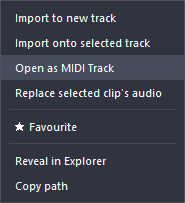
Right-click a file:
| Item | What it does |
|---|---|
| Import to new track | Brings the file in on a new track. |
| Import onto selected track | Brings the file in on the track you have selected. |
| Open as MIDI Track | Audio files only. Makes a new MIDI track that plays the sample from notes: middle C plays it as it was recorded, and other notes play it higher or lower. |
| Replace selected clip’s audio | Audio files only. The clip you have selected plays this file instead. |
| ★ Favourite | Adds the file to RECENT · ★. On a favourite, it reads ★ Unfavourite. |
| Reveal in Explorer | Shows the file in Windows Explorer. |
| Copy path | Copies where the file is on your computer, to paste somewhere else. |
Right-click a folder for Add as location (makes it a sound location of its own) and Open in Explorer.
Didn’t find what you need? Contact us.