2.4.4 The Inspector
The Inspector shows the selected track: its instrument, effects, sends, input and output, timing, preset and colour, ready to change.

The INSPECTOR tab shows the track you have selected, and everything about it that you can change. Click a track’s name in TRACKS, and the Inspector follows.
What you see depends on the kind of track: an instrument track has an INSTRUMENT section, an audio track does not. The sections are explained below in the order they appear.
The track’s fader, pan, solo, mute and record buttons are in TRACKS and in the MIXER tab of the lower zone.
2.4.4.1 The top of the Inspector
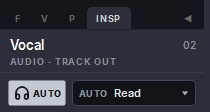
| Part | What it is |
|---|---|
| Colour square | The track’s colour. Change it in COLOUR, at the bottom. |
| Name and number | The track’s name, and its number in TRACKS (02 is the second track). |
| ◀ | Folds the Media Browser away. See The Media Browser. |
| The line under the name | The kind of track and what it plays: INSTRUMENT and the instrument’s name, AUDIO and its input, BUS, FOLDER or VCA and how many tracks are in it, or MASTER. When the track is in a link group, the line shows LINK and the group’s name. |
The state buttons
Under the name is a row of buttons for the track’s state. A button lights when it is on.
| Button | Track | What it does |
|---|---|---|
| Headphones | Audio | Input monitor: whether you hear what comes into the track. Click to go round IN (always), AUTO (only while the track is armed for recording) and OFF (never). The button shows which one is on. |
| Snowflake | Instrument | Freezes the track, or unfreezes it. A frozen track plays from a recording of itself, so it uses less of your computer’s power. While it is frozen you can’t change its instrument: unfreeze it first. |
| AUTO | Instrument, audio, bus | The track’s automation mode, for example AUTO Read. Click it and choose from the list below. |
| Mode | What the track does with automation |
|---|---|
| Read | Plays the automation you drew or recorded. The usual mode. |
| Write | Records your moves while the song plays, over what was there. |
| Touch | Records only while you hold a control. Let go, and it goes back to the automation that was there. |
| Latch | Records from the moment you touch a control until you stop, and keeps the last value. |
| Off | Ignores the automation. The controls stay where you set them. |
Automation has its own chapter, later in this manual.
2.4.4.2 INSTRUMENT
Instrument tracks only. The instrument that plays the track’s notes.
| Control | What it does |
|---|---|
| INST | The instrument’s name. Click it to open the instrument. With no instrument yet, it opens the list to choose one. |
| REPLACE … | Choose another instrument for the track. |
| BYP | Bypass: switches the instrument plugin off, and on again. It lights while the instrument is bypassed. Greyed out when the track has no instrument plugin. |
On a frozen track, INST and REPLACE are greyed out until you unfreeze it.
2.4.4.3 INSERTS
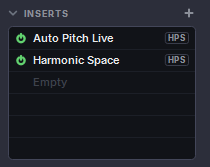
The effects on the track, top to bottom in the order the sound goes through them. The tag after each name shows where the effect comes from: HPS or L for an effect that comes with Harmonic Pro Studio, VST3 or VST2 for one of your plugins.
| You do | What happens |
|---|---|
| Click an effect | Opens it. |
| Click its power symbol | Bypasses it, or turns it back on. A bypassed effect is greyed out. |
| Right-click it | The insert menu, the same as in the Mixer. |
| Click +, or the Empty row | Opens the list of effects. The one you choose goes after the others. |
The Master has an INSERTS section too: the effects on the whole mix.
2.4.4.4 SENDS

A send copies the track’s sound to a bus, for example a reverb that several tracks share. A track can have up to eight sends.
Each row shows where the send goes, its level in dB (or off), and PRE or POST: whether the send takes the sound before or after the track’s fader. Click a row for the send menu, to change it.
Click + to add a send, and choose where it goes. With all eight in use, the hint bar says so.
2.4.4.5 INPUT
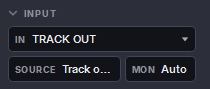
What comes into the track.
On an instrument track
| Control | What it does |
|---|---|
| MIDI IN | Which MIDI keyboard or controller plays the track: All inputs, or one of them. A port marked (closed) is not open yet: open it in Studio ▸ MIDI. One marked (not connected) is unplugged; until it is back, every input plays the track. The on-screen keyboard and Nimi always play it. |
| CHAN | Which MIDI channel plays the track: Any channel (all sixteen), or one channel from 1 to 16. |
On an audio track
| Control | What it does |
|---|---|
| IN | Which input of your audio interface the track records. Click to choose. |
| SOURCE | Hardware records the input above. Track output records the track’s own output instead. Click to switch. |
| MON | The input monitor, the same as the headphones button at the top: In, Auto or Off. Click to go round them. |
2.4.4.6 OUTPUT
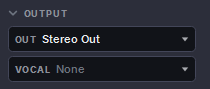
Where the track’s sound goes.
| Control | What it does |
|---|---|
| OUT | Where the track’s sound goes: Stereo Out (the Master) or a bus. Click to choose. |
| VOCAL | Marks the track as a vocal: None, Lead vocal or Backing vocal. The Export window uses it to make the instrumental, a cappella and TV mixes. Saved with the song. |
| VCA | Shows when the track is in a VCA, with the VCA’s name. Click it to see the VCA’s tracks in the Mixer. |
| DIRECT | Shows when the track has direct outs. Click it for their menu. |
| FED BY | Buses only. What feeds the bus: the tracks that go to it and the sends that reach it. |
| CUE | Buses only. Shows when the bus is a cue (headphone) mix. Its output is then set in the Mixer, and OUT reads locked by cue. |
2.4.4.7 TIMING
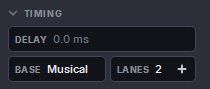
| Control | What it does |
|---|---|
| DELAY | Moves the track’s sound a little earlier or later against the rest of the mix, from −500 to +500 ms. Click it and set the time in the box that opens, or choose Reset to 0 ms. Below 0 the track plays earlier; to do that, the whole mix is held back by the same amount, so keep it small. |
| BASE | Musical: when you change the tempo, the track’s clips keep their bar and beat. Linear: they keep their time in seconds. Notes inside a MIDI clip always follow the tempo. Click to switch. |
| LANES | How many lanes the track has. Click it to add a lane under the track. |
A bus has DELAY only.
2.4.4.8 TRACK PRESET
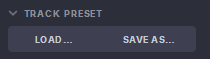
Instrument and audio tracks. A track preset keeps a track’s instrument and sound, its effects and its channel settings, to use again on another track or in another song. See The PRESETS tab.
| Control | What it does |
|---|---|
| LOAD … | Loads a track preset onto this track. The instrument, the effects and the channel settings become the preset’s. The track’s clips and automation stay as they are. You can undo it in one step. |
| SAVE AS … | Saves this track as a track preset, without its clips or automation. |
2.4.4.9 COLOUR
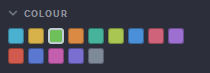
Click a colour to give it to the track. The track takes it in TRACKS, on the timeline and in the Mixer.
2.4.4.10 Folders, VCAs, buses and the Master
Select one of these, and the Inspector shows the sections that fit it:
| You select | The Inspector shows |
|---|---|
| MASTER | INSERTS: the effects on the whole mix. |
| A bus | INSERTS, SENDS, OUTPUT, TIMING and COLOUR. |
| A folder | OUTPUT: where the folder’s tracks go, and BUS: Route to new bus… makes a bus named after the folder and sends every track in it there. MEMBERS: the tracks in the folder, and any folders inside it; click a track to select it. And COLOUR. |
| A VCA | OUTPUT: the tracks the VCA controls. Change them in the Mixer. |
2.4.4.11 Fold a section
Every section starts open. Click a section’s name to fold it; click again to open it. A folded section shows a short summary after its name, for example the names of its effects, so you still see what is there. Harmonic Pro Studio remembers which sections you folded until you close it.
When the sections are longer than the panel, scroll.
2.4.4.12 Several tracks at once
Select several tracks in TRACKS, and the Inspector works on all of them.
- The top shows how many, for example 3 TRACKS, and their names. The values you see are those of one of them, the focus track. Rest the mouse on the names to see which one it is.
- Where the tracks are not the same, the value reads MIXED.
- A number after a section’s name shows how many of the selected tracks it changes.
- A change you make goes to every selected track that has that setting, as one step you can undo.
Some sections have a button to copy the focus track to the others:
| Section | Button | What it does |
|---|---|---|
| INSTRUMENT | COPY TO | Loads the focus track’s instrument on the other instrument tracks. |
| INSERTS | COPY TO | Adds the focus track’s effects to the other tracks, after their own. Effects a track already has are not added twice. |
| INPUT | COPY TO | Copies the focus track’s input settings to the other tracks of the same kind. |
| TRACK PRESET | APPLY TO | Choose a track preset once, and it loads onto every selected track of the same kind. |
2.4.4.13 The channel menu
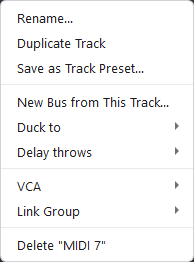
Right-click an empty part of the Inspector for the track’s channel menu: the same menu as its channel in the Mixer.
| Item | What it does |
|---|---|
| Rename… | Gives the track a new name. |
| Duplicate Track | Makes a copy of the track. |
| Save as Track Preset… | Saves the track as a track preset, the same as SAVE AS… in TRACK PRESET. |
| Delete “…” | Deletes the track. The menu shows the track’s name. You can undo it. |
New Bus from This Track…, Duck to, Delay throws, VCA and Link Group are explained on their own pages, later in this manual.
Didn’t find what you need? Contact us.