2.4.2 The VST tab
The VST tab: the instruments that come with Harmonic Pro Studio and your own VST plugins, how to find one and put it on a track.

The VST tab lists every instrument and effect you can use: the instruments that come with Harmonic Pro Studio, and the VST plugins on your computer.
Your plugins show here once Harmonic Pro Studio has scanned them. See Your plugins.
2.4.2.1 The list
| Section | What it holds |
|---|---|
| HPS INSTRUMENTS | The instruments that come with Harmonic Pro Studio: HPS Piano, Sonic, Harmonic Classic, Drum Module and HPS Guitar. Always at the top. |
| RECENT | The last five plugins you loaded from here, newest first. |
| FAVOURITES | The plugins you marked with ★. |
| INSTRUMENTS | Your instrument plugins, under the name of their maker. |
| EFFECTS | Your effect plugins, under the name of their maker. |
A section shows only when it has something in it, and the number at its right is how many. Click a section’s name to fold it or open it again.
Each row shows the plugin’s kind, its name, its maker and ★. Click ★ to make it a favourite.
| Kind | Means |
|---|---|
| HPS | Comes with Harmonic Pro Studio. |
| VST3 | A VST3 plugin. |
| VST2 | A VST2 plugin. |
| 32 | An older 32-bit plugin. |
2.4.2.2 Find a plugin
Type in Search instruments & effects to see only the plugins whose names match.
The buttons under the search box narrow the list. Click one to turn it on; click it again to turn it off.
| Button | Shows |
|---|---|
| INST | Instruments only. |
| FX | Effects only. |
| ★ | Your favourites only. |
| VST3 · VST2 · 32-BIT | Plugins of that kind only. |
2.4.2.3 Put a plugin on a track
| You do | An instrument | An effect |
|---|---|---|
| Double-click it, or click LOAD ▸ / INSERT ▸ on the selected row | Opens on a new track. | Goes on the selected track, in its next free insert. |
| Drag it onto a track on the timeline, or onto its channel in the Mixer | Goes on that track. | |
| Drag it onto empty space under the tracks | Goes on a new track. | |
2.4.2.4 The buttons at the bottom
The bottom of the tab shows the name of the plugin you have selected, and three buttons. With nothing selected, it reminds you what a double-click does.
| Button | What it does |
|---|---|
| NEW TRACK | Instruments only. Opens the instrument on a new track. |
| TO SELECTED | An instrument takes the place of the selected track’s instrument. An effect goes on the selected track as an insert. |
| MANAGER… | Opens the Plugin Manager: the folders to scan, the plugins to leave out, and your favourites. |
2.4.2.5 The plugin menu
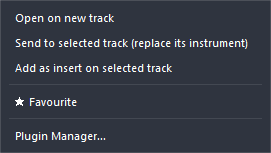
Right-click a plugin:
| Item | What it does |
|---|---|
| Open on new track | Instruments only. Opens it on a new track. |
| Send to selected track (replace its instrument) | Instruments only. Takes the place of the selected track’s instrument. |
| Add as insert on selected track | Effects only. Goes on the selected track as an insert. |
| ★ Favourite | Adds it to FAVOURITES. On a favourite, it reads ★ Unfavourite. |
| Hide from this list | Your own plugins only. Takes it out of this list. The Plugin Manager lists the plugins you hid, and can show them again. |
| Plugin Manager… | Opens the Plugin Manager. |
Items that do not fit the plugin you right-clicked are greyed out.
Didn’t find what you need? Contact us.