2.4.3 The PRESETS tab
The PRESETS tab: your track presets, the presets of the HPS instruments and your FX chains. Find one, load it, or save your own.

The PRESETS tab keeps the sounds and settings you want to use again: whole tracks, instrument sounds and chains of effects.
2.4.3.1 Three kinds of preset
| Kind | What it keeps |
|---|---|
| Track preset | A whole track’s set-up: its instrument and sound, its effects, and its channel settings. Not its clips or automation. |
| Instrument preset | A sound for one of the HPS instruments: Sonic, Harmonic Classic or HPS Guitar. |
| FX chain | A track’s effects, in order, with their settings. |
2.4.3.2 The list
| Section | What it holds |
|---|---|
| TRACK PRESETS | The track presets you saved. |
| SONIC | Sonic’s sounds. |
| HARMONIC CLASSIC | Harmonic Classic’s sounds. |
| HPS GUITAR | HPS Guitar’s sounds. |
| FX CHAINS | The FX chains you saved. |
The number at the right of a section is how many presets it holds. Inside a section, presets can be in folders, for example the instrument’s Factory sounds. Click a section’s name, or a folder, to fold it or open it again.
Each row starts with a short tag for its kind. The right of the row tells you more: a track preset’s instrument and effects, an instrument preset’s bank and type (for example Factory · ARP), an FX chain’s effects.
| Tag | Means |
|---|---|
| I | A track preset for an instrument track. |
| A | A track preset for an audio track. |
| SN · HC · GT | A sound for Sonic, Harmonic Classic or HPS Guitar. |
| FX | An FX chain. |
2.4.3.3 Find a preset
Type in Search presets to see only the presets whose names match.
The buttons under the search box narrow the list. Click one to turn it on; click it again to turn it off.
| Button | Shows |
|---|---|
| TRACK | Track presets only. |
| INSTRUMENT | Instrument presets only. |
| FX CHAIN | FX chains only. |
| ★ | Your favourites only. |
2.4.3.4 Load a preset
Select a track, then double-click a preset, or click LOAD ▸ on the selected row. The preset goes onto the selected track. The track’s clips and automation stay as they are. You can undo it in one step.
The bottom of the tab shows the name of the preset you have selected, and its buttons. With nothing selected, it reminds you what a double-click does.
| Button | What it does |
|---|---|
| TO SELECTED | Loads the preset onto the selected track. |
| NEW TRACK | Makes a new track from the preset. |
| RENAME… | Renames the preset. |
| DELETE | Deletes the preset from your presets. |
2.4.3.5 Save your own
Select the track, click + SAVE beside the search box, and choose:
| Item | What it saves |
|---|---|
| Save selected track as preset… | The track as a track preset. Give it a name. |
| Save selected track’s rack as FX chain… | The track’s effects as an FX chain. |
You can also save and load track presets from the TRACK PRESET section of the Inspector.
2.4.3.6 The preset menu
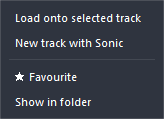
Right-click a preset. The items depend on its kind:
| Item | What it does |
|---|---|
| Load onto selected track | Every kind. Loads it onto the selected track. |
| New track from preset | Track presets. Makes a new track from it. |
| New track with Sonic (or the preset’s instrument) | Instrument presets. Makes a new track with that instrument, playing this sound. |
| Update from selected track | Track presets. Saves the selected track over this preset. |
| Rename… · Delete | Track presets and FX chains. Renames or deletes it. |
| ★ Favourite | Marks it as a favourite. On a favourite, it reads ★ Unfavourite. |
| Show in folder | Shows where the preset is kept on your computer, in Windows Explorer. |
Didn’t find what you need? Contact us.